

Six Emergency Features You Should Enable on Your iPhone
Learn how to set up Medical ID, emergency contacts, Emergency Bypass, Emergency SOS, and Crash Detection on your iPhone for safety.
Stock photo for illustration only, not from the actual event
- Set up your Medical ID so first responders can access health data while locked.
- Add emergency contacts with relationship details inside the Health app.
- Enable Emergency Bypass to allow sounds through even when on silent mode.
- Review your Emergency SOS and Crash Detection settings for maximum safety.
We all carry our phones everywhere, which means your device serves as a vital lifeline during an emergency. Apple includes a host of built-in features on iOS designed to facilitate getting help when needed, and taking the time to turn on these critical settings on your iPhone—and knowing how to use them—is essential before an emergency happens.
If you ever experience an accident where you are unable to communicate, first responders will likely need quick access to important medical information such as allergies, medications, and health conditions. You can input all of this data directly into your Medical ID within the Health app and add a shortcut to your lock screen so responders can view it even if they cannot unlock your device.
Inside the Health app, tap your profile picture and navigate to Medical ID to add relevant health details, including your blood type and detailed notes. Toggle on Show When Locked to allow responders to pull up this information from your passcode screen via Emergency > Medical ID. You can also enable Share During Emergency Call to automatically share your Medical ID when contacting emergency services.
Stock photo for illustration only, not from the actual event
While filling out your Medical ID, be sure to enter at least one emergency contact by clicking Edit > Add Emergency Contact and selecting from your existing contact list. Tap the contact to specify their relationship, such as a spouse or parent, with options also available for managers, teachers, social workers, or daycare providers. These contacts will be visible to first responders alongside your Medical ID and can receive automated messages via Crash Detection and Emergency SOS.
If you use Focus modes to silence notifications, you might still want alerts to break through from close contacts during an emergency, such as your child's school. Emergency Bypass allows sounds and vibrations to pierce through even when your device is on silent. Emergency contacts in your Medical ID receive this treatment by default, but you can enable it independently for others by opening their contact card, tapping Edit > Ringtone / Text Tone, and toggling Emergency Bypass on.
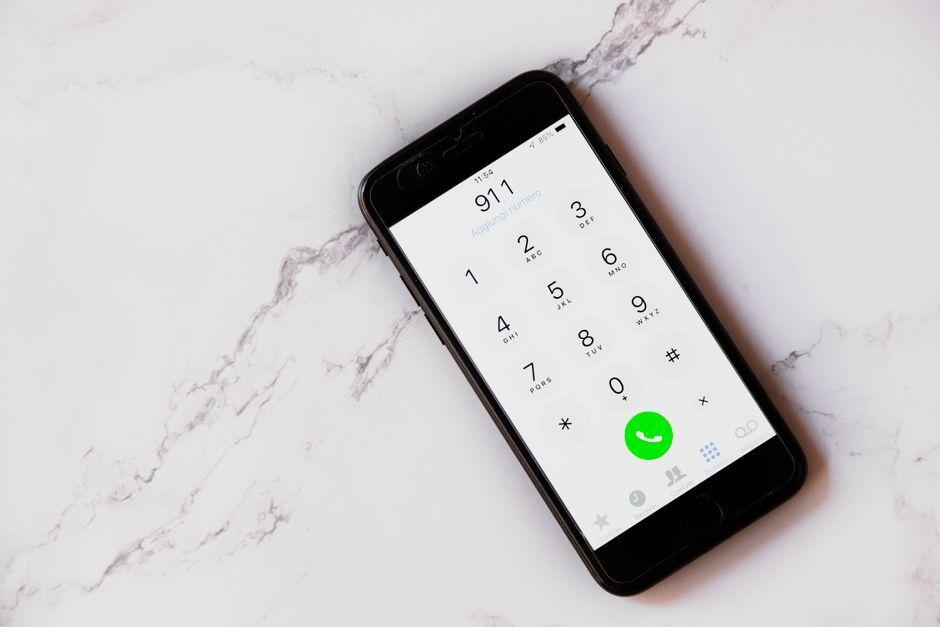
Emergency SOS is a longstanding iPhone feature enabling quick calls or texts to emergency services. While you do not strictly need to enable it, you can alter the triggering mechanism under Settings > Emergency SOS by switching the toggle next to Call with Hold and Release or Call with 5 Button Presses. You can also trigger emergency calls directly from your passcode screen and text emergency services through Messages.
Crash Detection is an iPhone and Apple Watch feature capable of calling emergency services and alerting your designated emergency contacts if your vehicle is involved in a severe crash or rollover. You will hear an alarm and see a visual alert with an emergency call slider, giving you the option to complete the call or dismiss it. If neither action is taken within 10 seconds, the device automatically initiates the call after a 30-second countdown and transmits your location data.
Source: Lifehacker
Found something wrong in this article? Report an issue with this article
Comments
Leave a Comment