

Five Ways to Make Gemini Behave More Like Google Assistant
As Google prepares to retire Google Assistant in favor of Gemini, here is how you can customize the new AI to act like the reliable voice assistant you are used to.
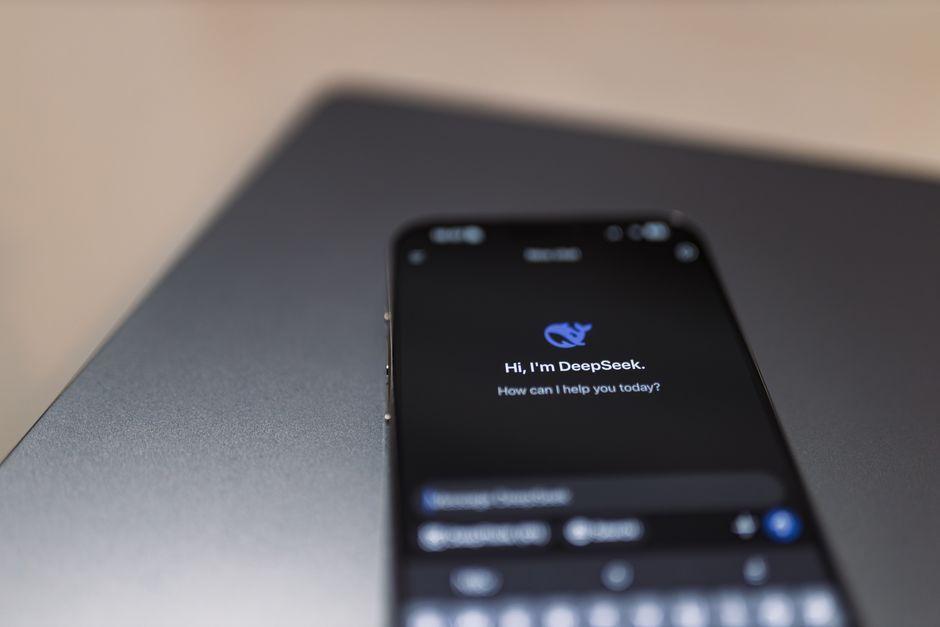
Stock photo for illustration only, not from the actual event
- Google is fully replacing Google Assistant with Gemini across devices.
- Users can customize Gemini to retain the simplicity of the older assistant.
- Turning off unneeded Connected Apps reduces unwanted AI suggestions.
- The Instructions for Gemini tool allows custom shorthand commands and app preferences.
With Google pushing its AI integration into every application, the classic Google Assistant is heading to the Google Graveyard. If you are not thrilled about the aggressive AI-ification of your devices, navigating this transition across your phone, car, kitchen display, and watch requires a bit of effort. To keep the functionality you rely on without unnecessary complications, you can tweak Gemini to behave much like the classic Assistant.
When September arrives, users will be automatically nudged toward Gemini on Google-powered phones, tablets, and watches. While bringing Gemini to your smart speakers is technically optional, setting it up across all your devices prevents frustrating conflicts where your phone and speaker try to respond simultaneously with different assistants.
Moving from a command-based assistant to a generative AI chatbot represents a massive shift in user experience. While AI offers advanced reasoning, many users simply preferred the speed and directness of traditional voice commands, making custom workarounds essential for retaining a streamlined workflow.
A major appeal of Google Assistant was its straightforward nature—handling light switches and timers without overcomplicating things with travel itineraries or browsing history. If you prefer that simplicity, consider turning off many of the Connected Apps. However, certain apps like Google Home for smart home controls and Utilities for timers should remain enabled, while Workspace integration may be necessary depending on whether you rely on Tasks, Keep, or Calendar for reminders.

Stock photo for illustration only, not from the actual event
The most powerful tool to bend Gemini to your will is the Instructions for Gemini feature, formerly known as Saved Info. While designed to store personal details, you can leverage it to create custom shorthand commands and ensure Gemini opens the correct application. For instance, if you want notes stored in Google Keep instead of Tasks, you can add a custom instruction telling it to always use Keep for notes and reminders.
Additionally, you can automate routines by heading to Settings > Scheduled actions within the Gemini app and tapping New Action. From there, you can name your routine, enter natural language commands, and set the exact frequency and time for the action to execute.
Source: Lifehacker
Found something wrong in this article? Report an issue with this article
Comments
Leave a Comment