

How to Configure Your VPN at the Router Level
Explore the pros, cons, and setup steps for configuring a VPN directly on your router to secure smart TVs, gaming consoles, and all home network devices.

Stock photo for illustration only, not from the actual event
- Setting up a VPN on your router secures every connected device at once.
- Protects devices that do not natively support VPN apps like smart TVs and the PS5.
- Requires a powerful router processor to prevent network performance bottlenecks.
- Supports major security protocols including OpenVPN and WireGuard.
Installing a VPN on a single device is much like locking the door to one specific room in a house. While that room remains secure, the rest of the household stays exposed to potential intruders. Extending this analogy, configuring a VPN directly at the router level acts as locking the front security gate, safeguarding the entire house along with all of its internal rooms and vaults.
By implementing a router-level VPN configuration, you force all connected devices within your network to route their traffic through an encrypted tunnel. This ensures that devices lacking native VPN application support, such as smart TVs or the PS5 console, receive the exact same tier of network security. Nevertheless, certain caveats do exist. For instance, some users report that platforms like Xbox have issued bans for VPN usage, although no official sources confirm this claim at this time. Furthermore, specific banking platforms and financial applications may reject VPN traffic entirely, requiring users to switch to a separate network for those sensitive tasks.
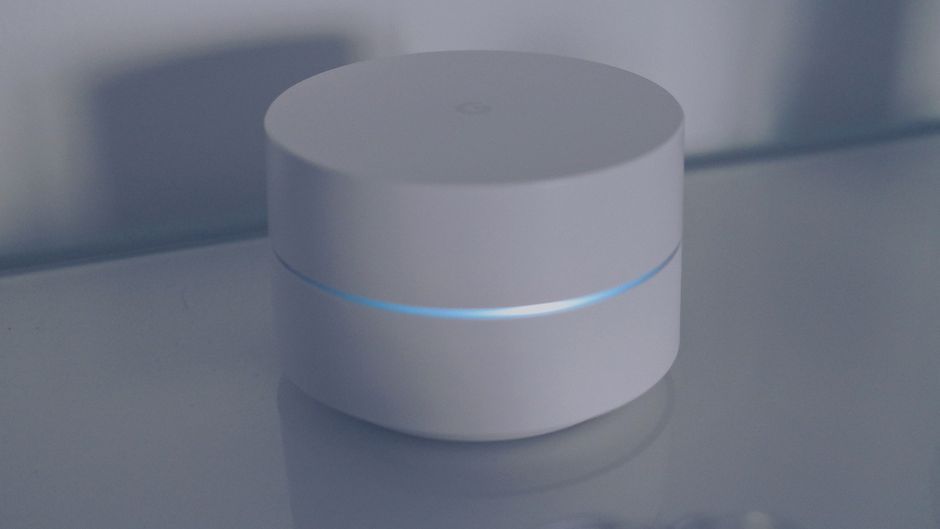
Stock photo for illustration only, not from the actual event
Examining the technical mechanics, running a VPN via a device application creates a TCP tunnel that routes traffic through a remote server, encrypting data solely for that specific device. If a service provider attempts to trace that traffic back, they hit the remote server rather than your local network. However, this leaves all other household traffic unencrypted, and managing individual VPN connections across numerous devices introduces human error that can accidentally expose online activity. Conversely, many advanced Wi-Fi routers feature built-in firmware supporting secure protocols like OpenVPN, WireGuard, PPTP, and L2TP Over IPsec, enabling direct router-level implementation.
Transitioning to a router-level VPN is an increasingly vital strategy for modern smart homes crowded with internet-connected appliances. Because typical Internet of Things (IoT) gadgets lack the user interfaces or operating systems needed to install auxiliary security apps, enforcing encryption at the network gateway prevents oversight vulnerabilities. However, users must account for hardware capabilities, as full-network TCP encryption places a heavy demand on the router's central processing unit.
The advantages of this approach include streamlined maintenance, as administrators avoid updating software across a dozen separate endpoints. Many routers also provide an automatic kill switch that halts internet traffic if the VPN drops unexpectedly. On the downside, this creates a single point of failure for home network encryption, meaning attackers who breach router firmware can disable VPN protection across every connected machine. Additionally, since the router handles heavy TCP encryption, suboptimal hardware causes network-wide slowdowns, though high-performance models like the ASUS RT-BE58U or Synology RT6600ax—priced roughly between $100 and $350 or higher—mitigate these performance penalties.
To begin the setup process, you must verify that your wireless router supports VPN protocols by checking product documentation or provider compatibility lists from services like Surfshark, ExpressVPN, and NordVPN. While configuration details differ by vendor, standard procedures share common paths:
- For ASUS routers: Access the ASUS Router WebGUI or mobile app from a connected device, ensuring firmware is updated to version 3.0.0.4.388.23000 or higher. Navigate to the VPN Fusion tab, click add profile, and select your protocol type like OpenVPN or WireGuard. Upload your configuration file or enter the server IP and port, then enable application across all devices before saving.
- For GL.iNET routers (running 4.x firmware): Download your VPN configuration file from your provider, log into the router administration panel, go to VPN followed by VPN Client Profile, and click add manually to upload your configuration file.
Source: Lifehacker
Found something wrong in this article? Report an issue with this article
Comments
Leave a Comment