

10 Spotlight Search Hacks Every iPhone User Should Know
Discover 10 powerful iPhone Spotlight Search tips to boost productivity, from quick timers and unit conversions to running shortcuts instantly.

Stock photo for illustration only, not from the actual event
- Spotlight on iPhone acts as both a search tool and a shortcut launcher.
- Set alarms, timers, and voice notes instantly without opening apps.
- Convert units, currencies, and perform quick mathematical calculations.
- Hide specific apps and search results easily for better privacy.
While most iPhone users rely on Spotlight primarily for finding contacts or searching the web, the feature functions as a powerful launcher for automations, calculations, and hidden iOS tasks.
Users can bypass the Clock app entirely by typing "Clock" into Spotlight, which instantly reveals buttons for Set Timer, Add Alarm, and Stopwatch to run functions directly from the Dynamic Island.
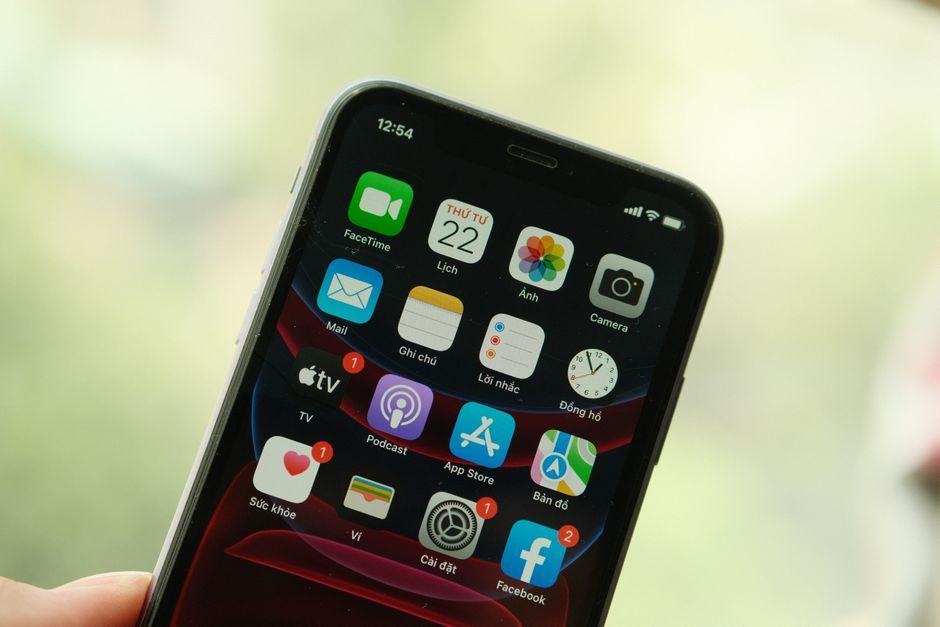
Stock photo for illustration only, not from the actual event
Additional handy Spotlight tricks simplify everyday smartphone tasks:
- Search text inside photos using built-in OCR by typing keywords to scan images.
- Convert units and currencies quickly by typing queries like "1 inch to cm" or "£120".
- Perform quick math calculations and percentages such as "20% x 180".
- Create calendar entries and search past months like "October 2024" for messages and emails.
- Start voice recordings rapidly by typing "Record" and utilizing the Dynamic Island timer.
Utilizing Spotlight as a central command line hub significantly reduces navigation friction in iOS, mirroring desktop launcher workflows designed to maximize daily efficiency.
Users can also execute video download automations for Instagram, Threads, or YouTube by typing "Download" with a copied URL, toggle Color Filters to grayscale to curb screen time, or switch Focus modes directly from the search bar.
For privacy management, users can hide sensitive apps and content by navigating to Settings > Search, and disabling "Show App in Search" or "Show Content in Search" for individual apps.
Source: Lifehacker
Found something wrong in this article? Report an issue with this article
Comments
Leave a Comment