

RAM running slower than expected? How to check and enable XMP/EXPO
Your new RAM might be running below advertised speeds by default. Learn how to check current rates and enable XMP or EXPO profiles in your BIOS.

Stock photo for illustration only, not from the actual event
- New RAM kits often run at baseline JEDEC speeds instead of advertised rates
- Users must enable Intel XMP or AMD EXPO profiles inside the motherboard BIOS
- DDR4 defaults to 2,133 MHz while DDR5 starts between 4,800 and 5,200 MHz
- First boot after enabling profiles may take longer due to memory training
When purchasing a new memory kit for a computer build, many users might not realize that hardware often operates slower than the speeds advertised on the packaging by default. For instance, a DDR4 kit marketed at 3,200 MHz frequently runs at just 2,133 MHz, while a DDR5 kit advertised at 6,000 MHz may start at 4,800 to 5,200 MHz if the high-speed profile remains disabled.
This behavior stems from a small chip embedded in the memory module known as the SPD, or Serial Presence Detect. The SPD stores configuration details, including the basic JEDEC profile designed to ensure compatibility across various processors and motherboards. Motherboards typically default to selecting this JEDEC profile first upon startup.
Alongside standard profiles, the SPD chip also houses manufacturer-certified high-speed configurations: XMP for Intel systems and EXPO for AMD setups. According to a MakeUseOf guide published on October 9, 2026, DDR4 has experienced a resurgence in new PC builds as rising DRAM prices, driven by the surge in artificial intelligence, made it a popular alternative choice once again.
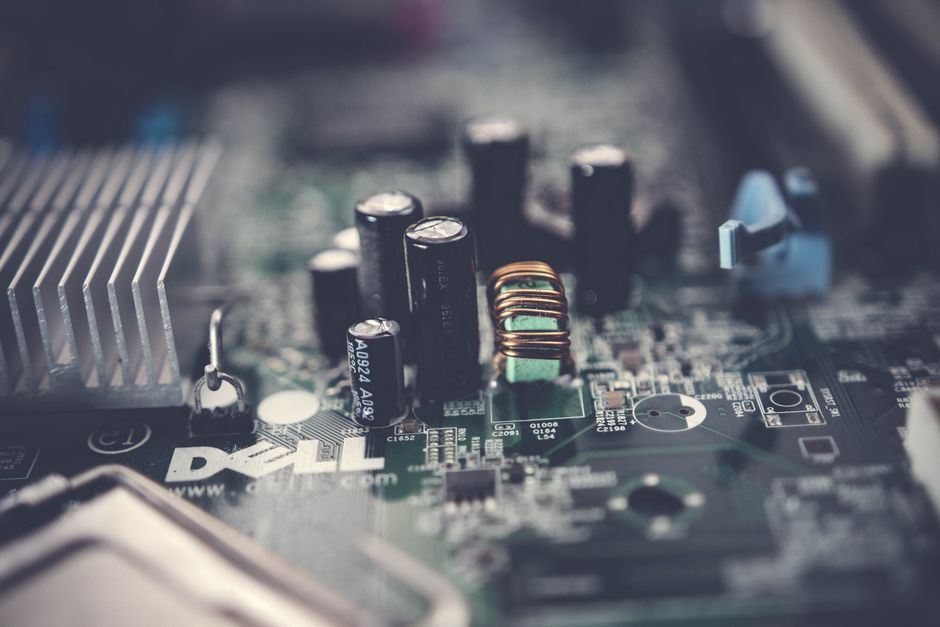
Stock photo for illustration only, not from the actual event
To check current speeds and unlock full performance, users need to access the system BIOS by pressing F2 or Delete during system startup. Navigate to the overclocking section—labeled as OC on MSI motherboards or Tweaker on Gigabyte systems—and select the first available XMP or EXPO profile listed.
While these high-speed profiles are technically categorized as overclocking, they are thoroughly tested and certified by manufacturers. If system instability occurs with an active profile—particularly on motherboards populated with all four RAM modules—users should slightly reduce the operating speed and voltage if necessary. Furthermore, the initial boot sequence might take slightly longer because the system executes memory training to calibrate signals, timings, and voltages between the processor and memory.
For DDR5 owners, if Memory Context Restore was enabled prior to modifying memory speeds, that setting should be disabled first to prevent the system from retaining outdated configurations and causing instability. Keeping the motherboard BIOS updated to the latest version is also strongly advised, as older firmware versions often struggle with high-speed memory modules, particularly DDR5 variants.
Finally, proper physical installation matters: if a motherboard features four slots but only two RAM modules are used, they must be installed in the manufacturer-specified slots to ensure proper dual-channel operation.
Source: Dev.to
Found something wrong in this article? Report an issue with this article
Comments
Leave a Comment